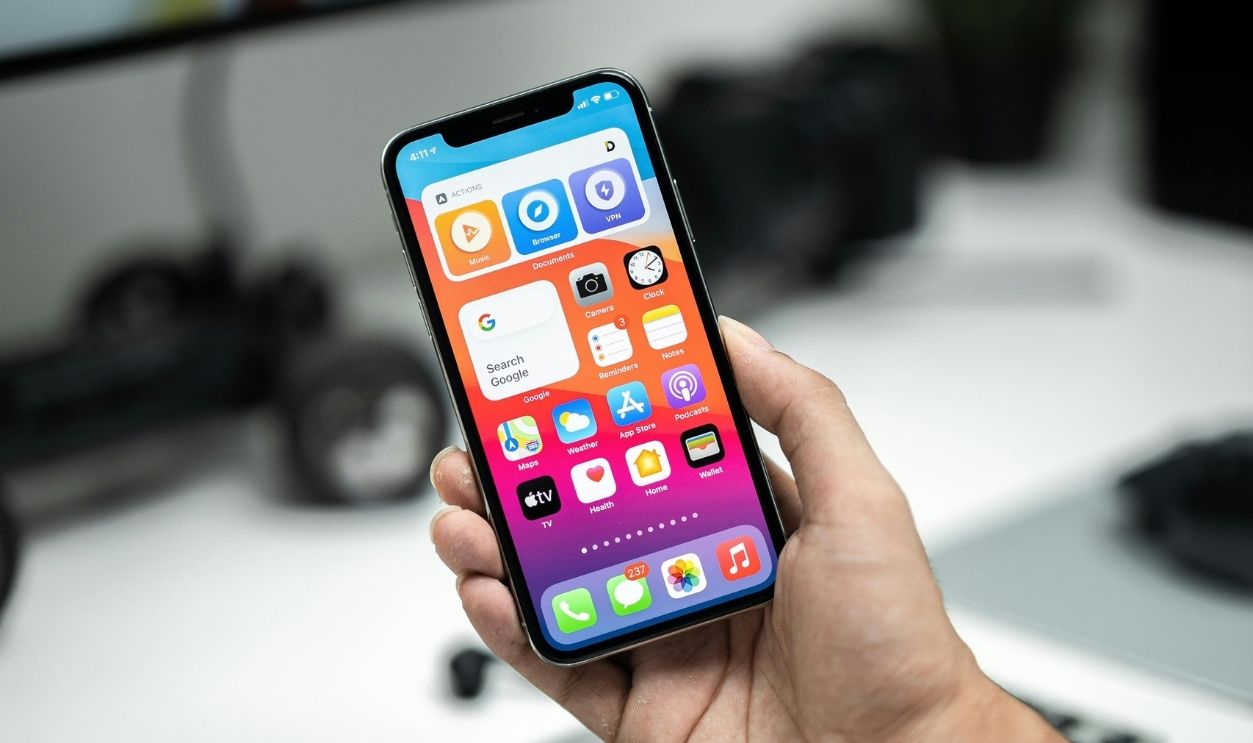

A Small Dot, A Big Meaning
While scrolling or responding to social media messages, a tiny orange dot appears near the top of the screen and disappears just as quickly. Most people barely notice it, yet it signals something important happening behind the scenes.
 Antoni Shkraba Studio, Pexels, Modified
The Dot Most People Never Notice
It’s easy to overlook a small colored dot near the status bar, especially amid notifications and icons. Yet that subtle indicator is designed to communicate something important. Apple intentionally made it noticeable without being disruptive, assuming users would learn its meaning over time.
This Is What It’s Telling You
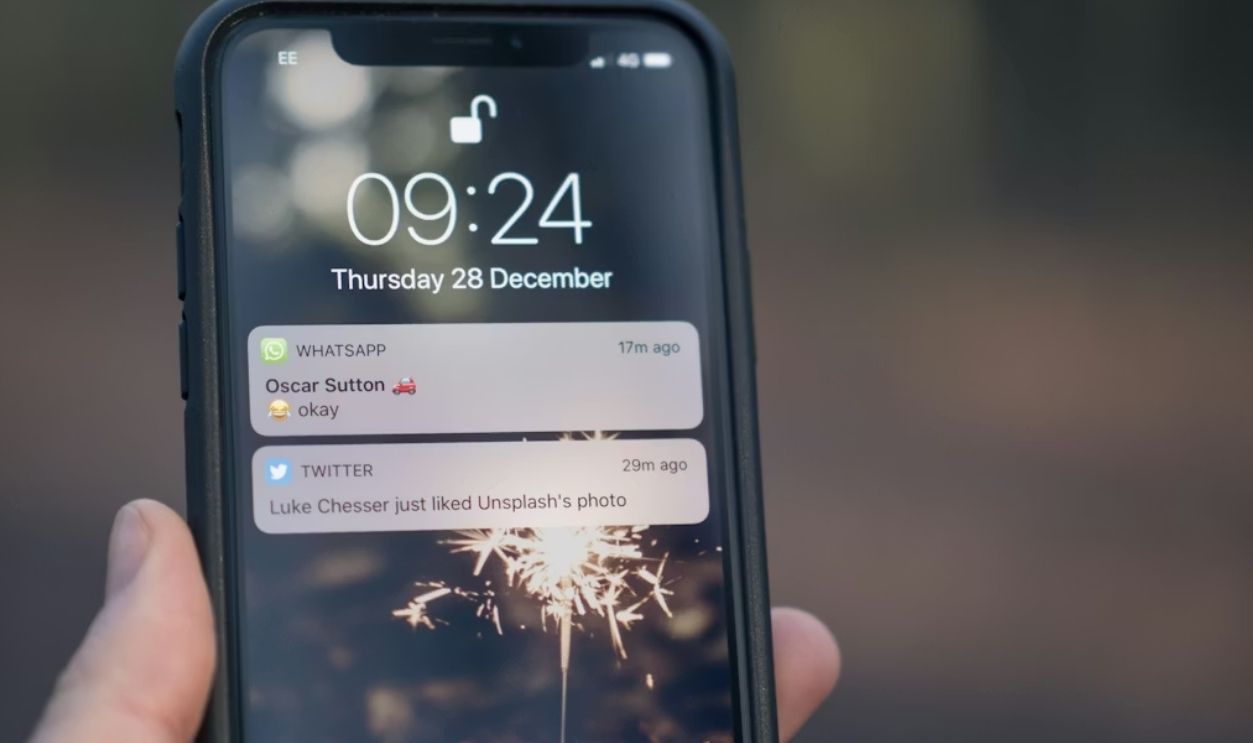
Seeing the orange dot means your iPhone’s microphone is actively in use. An app, system feature, or call is capturing audio at that moment. The indicator does not record sound itself; it simply alerts you whenever audio input is happening on your device in real-time.
Why Apple Added A Visual Warning
Apple added visual indicators for recording to increase transparency around sensor use. Before iOS 14, users had little real-time feedback when apps accessed microphones or cameras. The dots act as immediate signals to strengthen Apple’s broader push toward privacy controls and informed consent.

When The Orange Dot First Appeared
When Apple released iOS 14 in 2020, the orange dot quietly arrived alongside several privacy upgrades. It wasn’t heavily advertised, but it represented a shift in how Apple communicated about background activity, favoring subtle alerts over detailed pop-ups or constant warnings.

How The Orange Dot Differs From The Green Dot
The green dot often causes confusion because it appears similar but signals something different. Green indicates camera access, which also includes microphone use when recording video. In contrast, orange confirms audio-only activity, such as voice calls or background microphone access by specific applications running.
 Jay Wennington jaywennington, Wikimedia Commons
Awareness Matters More Than You Think
Microphones can capture sensitive details, from private conversations to background sounds that reveal routines or locations. Apple’s indicator exists because audio access carries real privacy implications. Knowing when your phone is listening helps users maintain control in an era of always-on apps.

Everyday Actions That Can Trigger The Dot
Many common activities activate the microphone without much thought. Phone calls, FaceTime sessions, voice memos, Siri requests, and speech-to-text dictation all require access to audio. Certain apps, such as navigation or social media platforms, may also briefly access the microphone for specific features.

Seeing The Dot Is Completely Normal In These Cases
The orange dot is expected during calls, voice recordings, or while using apps that rely on spoken input. Navigation apps that give voice directions or messaging apps that record voice notes are typical examples. In these cases, the indicator confirms your phone is functioning exactly as intended.


History's most fascinating stories and darkest secrets, delivered to your inbox daily.
Signs That Should Raise Concern
Seeing the orange dot when no audio-related app is open can feel unsettling. If it appears unexpectedly or persists without explanation, it may indicate background activity. That’s a cue to investigate further, especially if the app using the microphone doesn’t clearly need audio access.

How Apps Can Use The Microphone In The Background
Some apps are permitted to access the microphone even when not actively displayed. This usually supports features like voice commands or live interactions. Apple requires apps to request permission first, but users may forget approvals granted earlier.
Identifying The Listening App
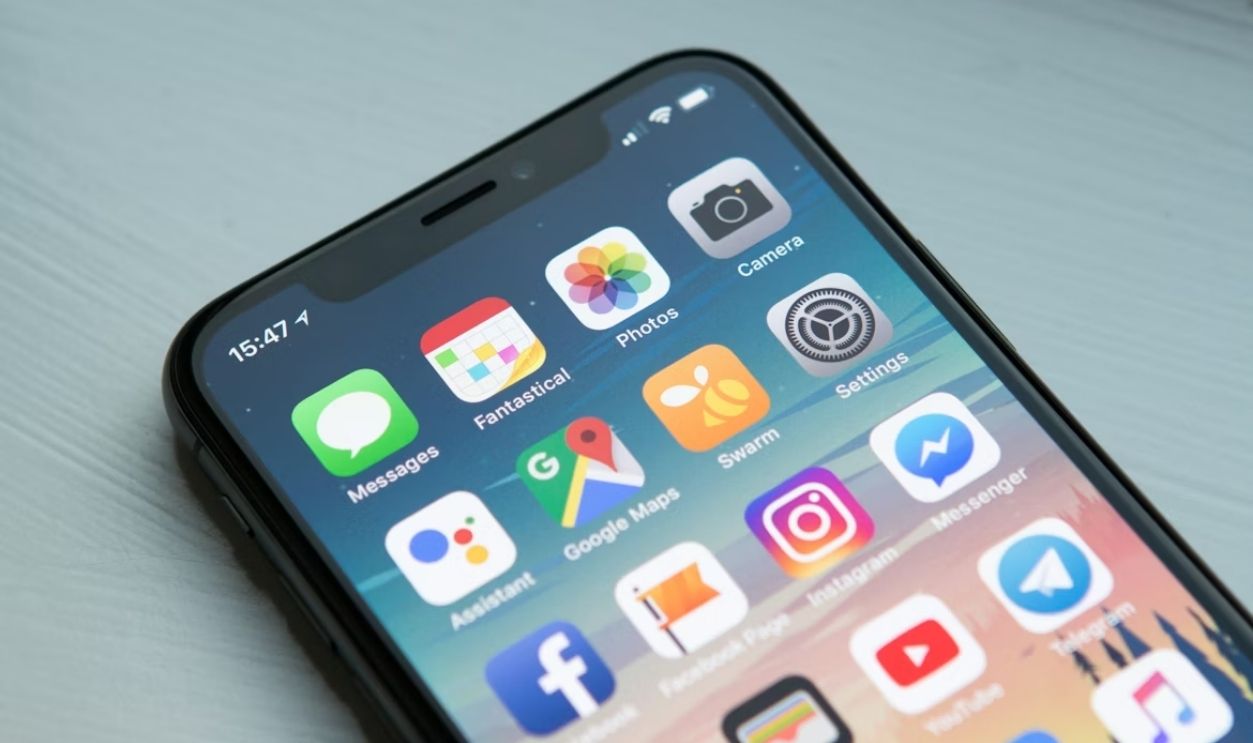
Apple provides a fast way to pinpoint which app accessed your microphone. Opening Control Center while the orange dot is visible shows the app name at the top of the screen. This removes guesswork and helps users immediately understand what triggered the indicator.
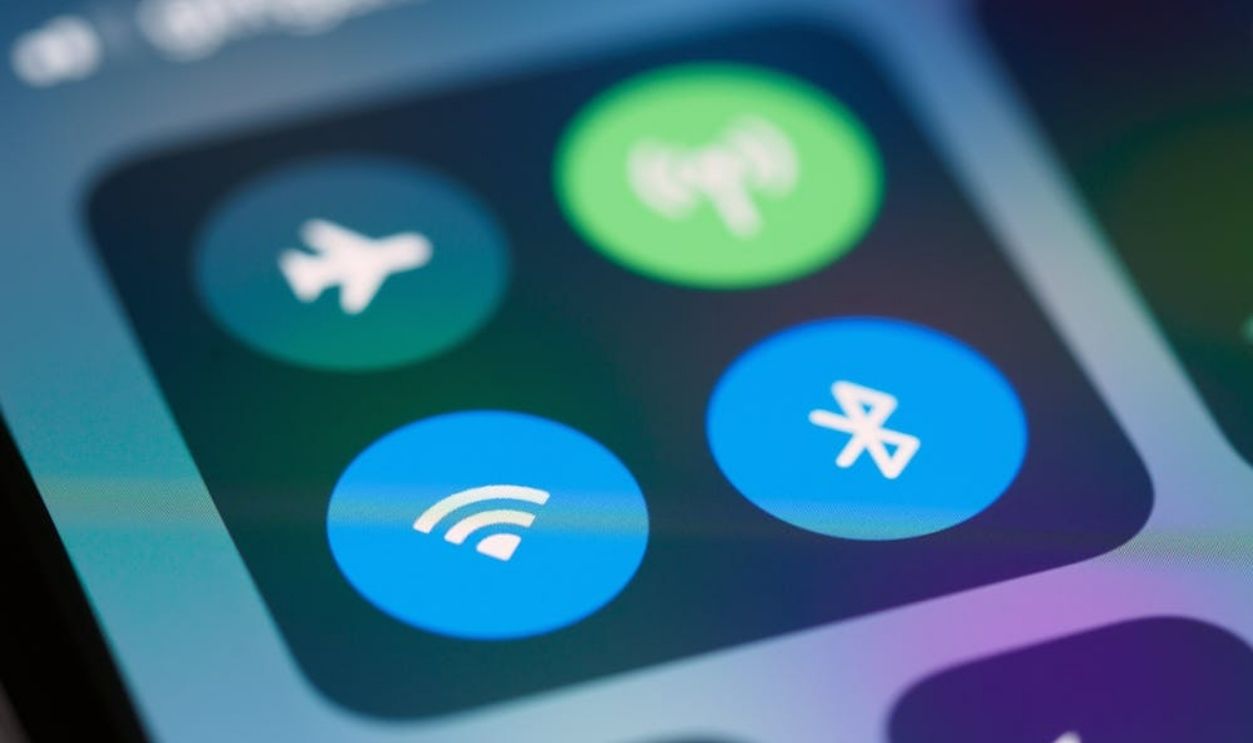
What Control Center Reveals In Seconds
The control Center doesn’t just display active connections and settings. It also shows recent microphone and camera usage for instant transparency. Even if the dot disappears, this view can show which app last accessed audio, which helps users track down unexpected or questionable activity efficiently.

How Often Do Apps Request Recording Access?
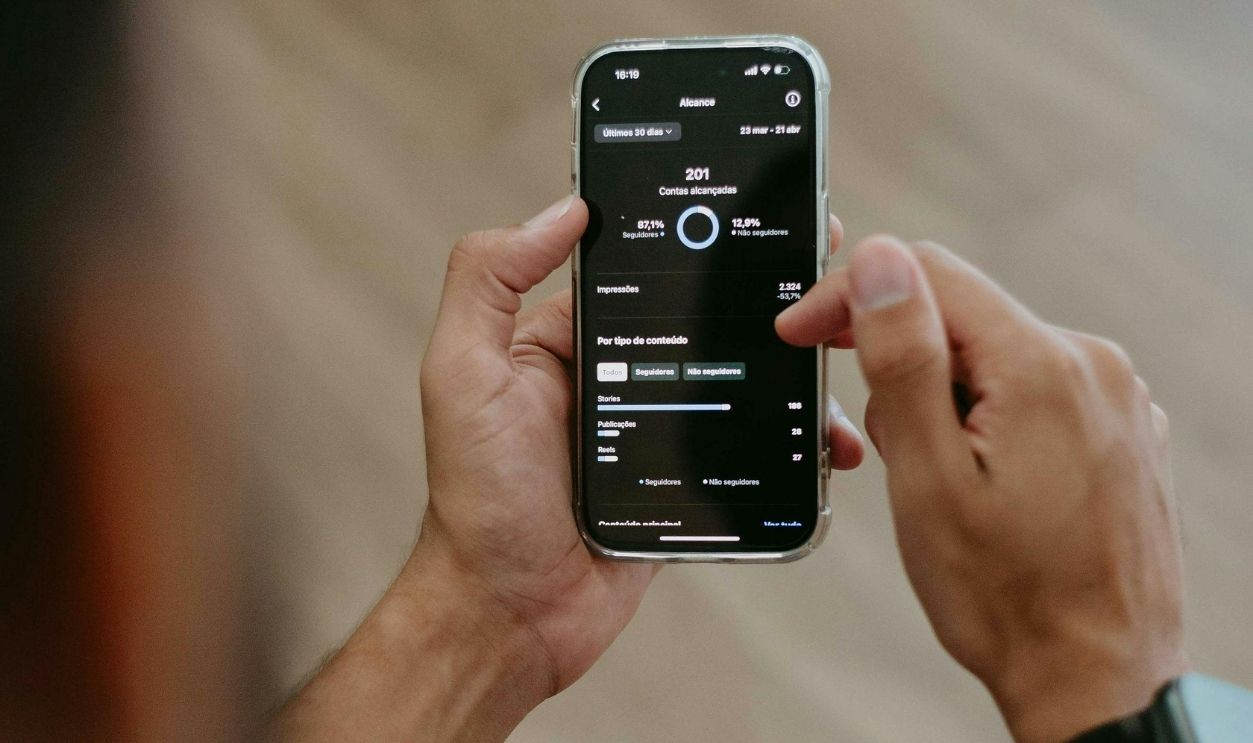
Many apps request microphone access during setup. Users can quickly approve these requests without revisiting them. Over time, dozens of apps can accumulate audio permissions, even if microphone-based features are rarely used or no longer relevant.
 CLIPPING MARKETING DIGITAL, Pexels
Always Allow Can Create Problems
Selecting “Always Allow” gives an app ongoing microphone access, even when it’s not actively in use. While convenient, this setting increases exposure if the app runs in the background. Limiting access reduces unnecessary audio use without breaking core functionality.
Microphone Permissions In Settings
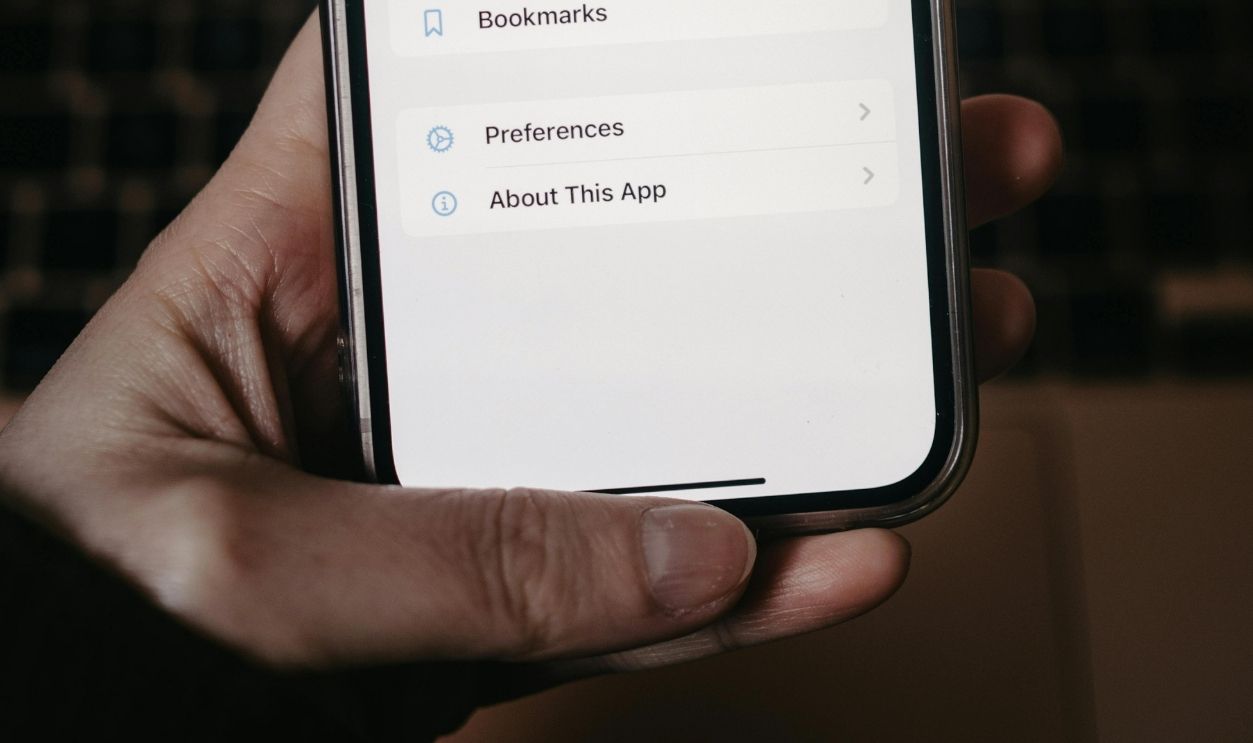
The provider, Apple, makes permission management straightforward. In Settings, navigating to Privacy & Security, then Microphone, shows every app with audio access. From there, users can toggle permissions individually to review, restrict, or rethink earlier decisions.

Revoking Access Without Deleting An App
You don’t need to remove an app to stop microphone access. Turning off its microphone permission immediately blocks audio recording. The app will prompt you again if it needs access later. As a result, you get to decide based on context rather than past assumptions.

When Removing An App Is The Safest Choice
If an app repeatedly accesses the microphone without a clear purpose, deletion may be the safest response. Unused or unfamiliar apps pose higher risks, especially if they haven’t been updated recently. Removing them reduces both privacy exposure and unnecessary background activity.

The Orange Dot Does Not Show You Everything
While helpful, the orange dot doesn’t provide full context. It doesn’t explain why audio is being captured or how long recordings last. It also doesn’t distinguish between short bursts and extended use, so user judgment is essential to privacy awareness.

Still, It Changed Phone Awareness
Before visual indicators, microphone use often went unnoticed. This visual cue shifted that dynamic by encouraging real-time awareness rather than after-the-fact discovery. Over time, it trained users to recognize patterns in app behavior instead of relying solely on settings menus.
Common Misunderstandings About Phone Recording
Many people assume the orange dot means active spying or constant recording, which isn’t accurate. The indicator only signals microphone use, not data storage or transmission. Recording still depends on app behavior and permissions. Context is essential before jumping to conclusions.

This Indicator Is More Trustworthy
Privacy policies rely on trust, but visual indicators rely on behavior. The orange dot appears based on system activity, not on developer claims. That distinction gives users a direct signal tied to real usage rather than fine print or assumptions about how apps should behave.

How Other Smartphones Handle Microphone Alerts
Android devices also use visual indicators for microphone and camera access, though designs vary by manufacturer. Like Apple, Google introduced these features to improve transparency. However, placement and visibility differ, which makes Apple’s always-visible dot one of the more noticeable implementations.
 Oceanos y dados, Wikimedia Commons
Simple Habits That Improve Everyday Phone Privacy
Regularly reviewing app permissions and deleting unused apps can significantly reduce privacy risks. Keeping iOS updated also matters, as Apple frequently refines security features. These small habits help users stay informed without requiring technical expertise.

Learning To Pay Attention
The orange dot works best when users notice it and respond thoughtfully. Over time, recognizing when it appears helps build awareness of how apps interact with your phone. That knowledge turns a tiny symbol into a powerful reminder of who has access to your device.